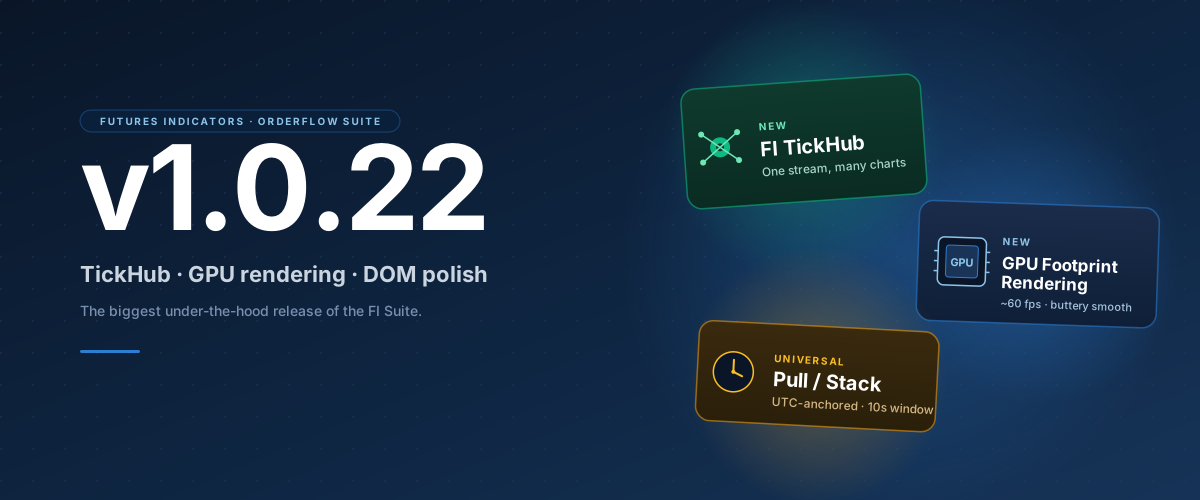
v1.0.22 is one of the bigger releases we've shipped for the FI Suite. The focus this time was on the things users have been asking about for months: cleaner text across different monitor setups, smoother chart performance during fast markets, consistent data between machines, and tighter DOM polish.
Here's what's new and how to use each piece.
The short version
Six things shipped this release. In rough order of impact:
- FI TickHub — a new indicator for traders running multiple FI charts on the same instrument. Centralizes the work so each chart isn't doing it independently. Big win on multi-timeframe workspaces.
- GPU Footprint Rendering — a new high-performance rendering mode. Lets the chart breathe at 60 fps even on 4K monitors. Just pick it from the right-click Renderer menu.
- Universal Pull/Stack — P/S values now read the same across every machine watching the same instrument.
- Font Scale — six size presets with Auto-detect. The same chart looks right on a retina laptop, an external monitor, and inside a Parallels VM with High DPI off.
- Fast-market resilience — new safeguards keep the chart and DOM responsive when ticks are flooding in faster than NinjaTrader can keep up.
- DOM improvements — new Minimal + Δ layout, Sky/Rose deltaDefinitionAsk volume minus bid volume. Positive = more buying. Negative = more selling. Shows who is more aggressive. palette, a large-order highlight that's actually readable, and DOM customizations that persist correctly.
The rest of this post walks through each one.
FI TickHub — one stream, many charts
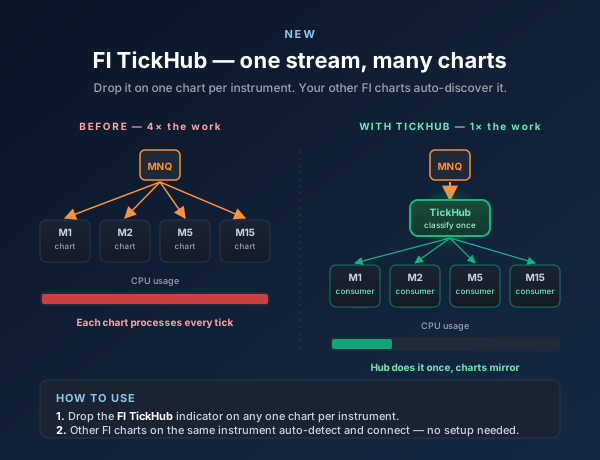
If you have four FI charts open on the same instrument — say M1, M2, M5, and M15 of MNQDefinitionMicro E-mini Nasdaq 100 — 1/10th the size of NQ. 1 tick = $0.50, 1 point = $2. Fast moves, beginner-sized risk. — each chart is independently doing the same work. Four charts means four copies of the same work, four times the CPU cost.
FI TickHub centralizes that. It's a small new indicator you drop on any one chart per instrument. Once it's loaded, the other FIOrderFlow charts on that instrument automatically detect it and start reading the hub's results instead of duplicating the work. The CPU savings are biggest exactly when you need them — during fast markets, news events, opens.
Key Insight
You don't have to use TickHub. Every FIOrderFlow chart still works on its own. But if you run multiple timeframes of the same instrument, it's a substantial performance upgrade with zero ongoing configuration.
How to use it:
- Drop the FI TickHub indicator on any one chart per instrument
- Your other FIOrderFlow charts on the same instrument auto-detect and connect — no settings to change
- If TickHub isn't loaded, each FIOrderFlow falls back to doing its own work; nothing breaks
GPU Footprint Rendering — a smoother chart
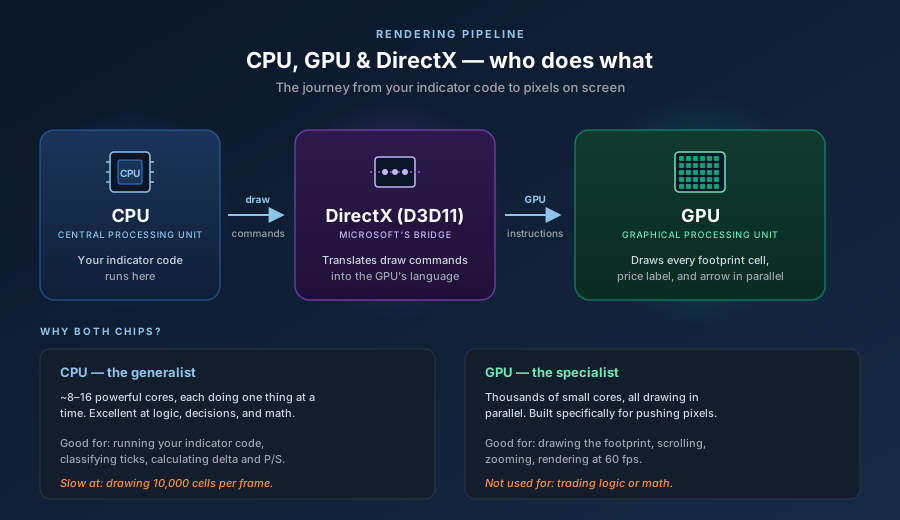
v1.0.22 introduces GPU Footprint Rendering — a new mode that draws the footprintDefinitionA chart showing bid and ask volume at every price inside each candle. Reveals who is buying and selling. on your graphics card so the chart can refresh up to 60 frames per second, even on 4K monitors and during fast market hours. The default NinjaTrader rendering path is still there as a fallback, and there's a second mid-tier mode in between for machines without a dedicated GPU.
You'll find all three options by right-clicking a chart with FIOrderFlow loaded and opening the Renderer submenu. They're listed top-to-bottom by performance:
- Default — the standard NinjaTrader rendering path. Use it as a fallback if anything looks off with the others.
- Mid-tier Ultra — smoother feel without any special hardware requirements. A good choice for most setups.
- GPU Footprint Rendering — our smoothest renderer, recommended if you have a dedicated graphics card.
Pick whichever feels best on your hardware. You can swap between them with no chart reload.
Minimal tech demo
Watch this
Notice how you can't see the bid × ask change in realtime on the native rendering? FIOrderFlow with GPU Footprint Rendering tracks every depth tick as it happens.
When you're on either non-Default mode, three additional knobs appear nested below in the same submenu:
- Frame Rate — Battery (15 fps) / Balanced (30 fps) / Smooth (60 fps). Pick lower if you want to save CPU on a busy workspace; pick Smooth if your machine has headroom.
- Smart Slowdown — automatically throttles chart redraws when NinjaTrader's tick feed is under heavy load. Recommended on.
- Fast Mode — a faster-draw mode that's particularly useful on 4K displays. Slight softening to text in exchange for a meaningful speed boost.
Universal Pull/Stack — same numbers, every machine
Pull/Stack (P/S) shows how much liquidityDefinitionResting orders (stop losses, limit orders) at known levels. Institutions need liquidity to fill large positions. is being added (stacking) or removed (pulling) at each price over the last few seconds.
The problem with the old version: two traders running side by side could see meaningfully different P/S values depending on when they each opened the DOM — because each chart was tracking its own running total from a different starting moment.
In v1.0.22, P/S is anchored to UTC time — that's "Coordinated Universal Time," a shared world clock that's the same for everyone on Earth (same as GMT). Every render references the same recent window measured against that world clock, so two charts watching the same instrument at the same moment now show the same numbers.
Key Insight
Default window changed from 8 seconds to 10. You can still adjust it via the gear popup or the P/S column right-click menu.
The other upshot: P/S now reads as "what just happened in the book" rather than "accumulated state since the last quiet period." Spikes age out cleanly after the window passes.
Font Scale — same chart, any monitor
Different monitors have different pixel densities. DPI stands for "dots per inch" — a measure of how many pixels are packed into each inch of your screen. A standard office monitor is around 96 DPI; a retina laptop is 192 DPI or higher.
The problem: a chart that looks balanced on a retina MacBook can render with comically huge fonts on a low-DPI external display. The classic offender is running NinjaTrader inside Parallels (Mac virtualization software) with "High DPI" turned off.
The new Font Scale menu has six options on both FIOrderFlow and FIMarketStructure:
- Auto — reads your chart window's pixel density and picks the right scale automatically
- Tiny (0.6×)
- Small (0.8×)
- Normal (1.0×)
- Large (1.25×)
- Huge (1.5×)
Auto picks the smaller scale on low-DPI windows (the Parallels case) and 1.0× for standard hi-DPI / retina configs. Drag a chart from one monitor to another with different DPI and it re-detects and resizes on the fly — no chart reload needed.
The setting cascades through every label on both indicators: footprintDefinitionA chart showing bid and ask volume at every price inside each candle. Reveals who is buying and selling. cells, DOM headers, signal banner, hub connectivity badge, TPODefinitionTime Price Opportunity — a letter printed at each price level per 30-minute period on a Market Profile chart. labels, Volume ProfileDefinitionA histogram showing total volume at each price level. The widest bar is the POC. labels, Delta Profile labels, hover tooltips, position pills, big-trade bubbles, absorptionDefinitionHeavy aggressive orders hit a level but price doesn't move — a large passive player is absorbing the flow. bubbles. Pick a preset once and everything resizes together.
Built to hold up during fast markets
Fast moves — news, market opens, large directional drops — can pile ticks up faster than the platform can process them, and historically that's where order-flow tools tend to fall behind. We put a lot of work into this release to keep the chart and DOM responsive in exactly those moments.
Two new safeguards now kick in automatically during heavy load:
- Survival Mode — when the tick feed falls more than five seconds behind real time, the chart pauses its redraw cycle and waits for the platform to catch up rather than competing with it for CPU. Re-engages automatically when things calm down.
- Smart Slowdown — a progressive throttle that backs off the redraw rate as feed lag grows, so the trading platform's data pipeline gets the CPU it needs.
You don't have to configure either. They're on by default and turn off when the market quiets.
DOM improvements
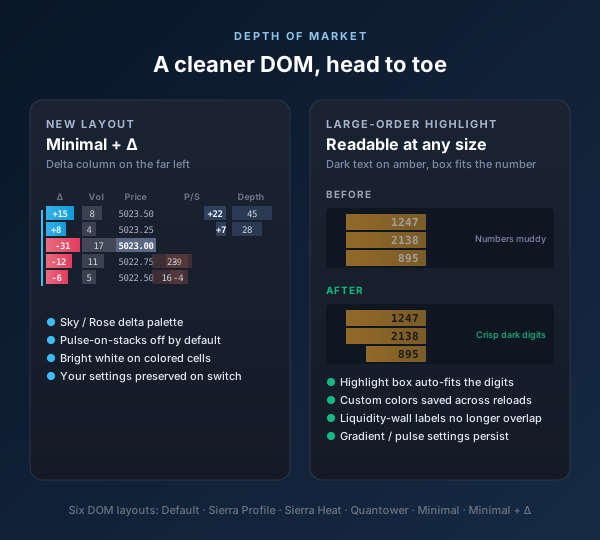
A lot of work landed in the Depth of Market (DOM) panel:
Minimal + Δ — a new layout
The Minimal layout was popular for its clean look, but some traders wanted aggressed-side Delta visible without giving up the minimal aesthetic. (Delta is buying minus selling at each price — positive means buyers stepped in, negative means sellers did.) Minimal + Δ is the same layout as Minimal with a Delta column added on the far left.
The Delta column in both Minimal layouts uses a dedicated Sky / Rose palette (a soft blue and a soft coral). It's visually distinct from the depth bars on either side, so your eye reads the two signals separately.
Large-order highlight, finally readable
Big walls in the DOM get a colored highlight on top of the depth bar — amber for bids, mint for asks. The old version used the same gray text as the rest of the row, which made big numbers muddy on the bright highlight. v1.0.22 flips the text to dark on highlighted rows, and the highlight box auto-extends to cover the full digit string regardless of bar width. Numbers stay crisp.
Settings that actually persist
A handful of DOM customizations weren't being saved correctly across chart reloads — large-order glow color, threshold, gradient toggle, time decay, pulse on stacks, trade dots, iceberg / spoof detection, heatmap mode, Bookmap palette, Vol column style. All of those now round-trip correctly through workspace save/reload.
Smaller touches
- LiquidityDefinitionResting orders (stop losses, limit orders) at known levels. Institutions need liquidity to fill large positions. wall labels no longer overlap when zoomed out (the label box sizes itself to the row instead of being fixed-height)
- Bright white depth numbers in Minimal — much higher contrast against the dark depth bars
- Pulse-on-stacks off by default in both Minimal layouts (keeps the look calm), with your preference preserved when you switch between layouts
Getting the update
Shipping as v1.0.22. The next time NinjaTrader recompiles your indicators, you'll have the update. Right-click on a chart with FIOrderFlow or FIMarketStructure loaded and you'll find the new menus.
If you'd like to load FI TickHub on a workspace where you run multiple FI charts on the same instrument, drag it onto any chart from the Indicators dialog — it auto-discovers consumers from there.